This guide is organized into the following sections:
- The Benefits of Installing VPN for iPhone
- How To Install VPN for iPhone Guide
- How To Configure Your Surfshark VPN Settings
- Frequently Asked Questions about Surfshark VPN for iPhone
Best VPN for iPhone – Benefits
Why would you want to use a VPN for iPhone?
There are several reasons why thousands of cord-cutters use Surfshark on their iPhone and other iOS devices.
Protect Yourself Online
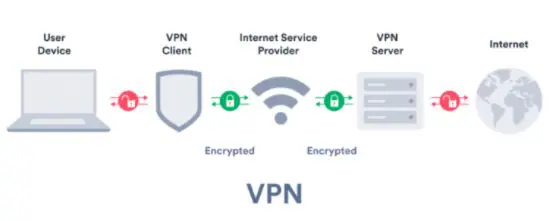
By installing the best VPN for iPhone, you will enjoy a secure connection to the Internet which will hide your activity online such as downloads, streaming apps, websites, and more.
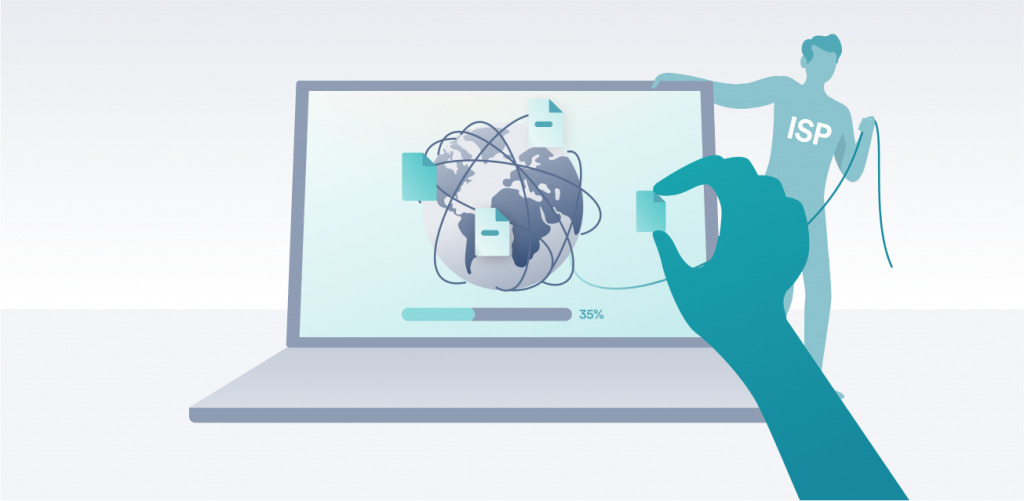
A VPN will also change the IP Address that your Internet service provider assigns to your account which makes it impossible to trace where your connection is coming from.
Block Ads and Malware
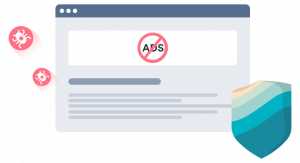
Sufrshark offers a CleanWeb feature on iPhone that will stop annoying ads/malware while protecting against other attacks from hackers.
Because few providers offer this feature, this adds another reason why Surfshark is the best VPN for iPhone.
A feature like this is very important for those who use movie streaming sites and sports streaming sites to view content from their iPhones.
Unblock Streaming Apps/Services
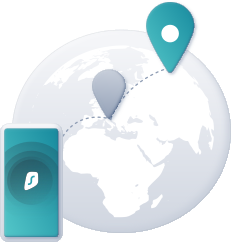
Another reason Surfshark is the best VPN for iPhone is because of its ability to unblock streaming apps and services that are only available to people in certain geographical regions.
Using Surfshark will help evade censorship due to geographic locations. This is especially useful for streaming apps like Netflix, BBC iPlayer, Peacock TV, and others.
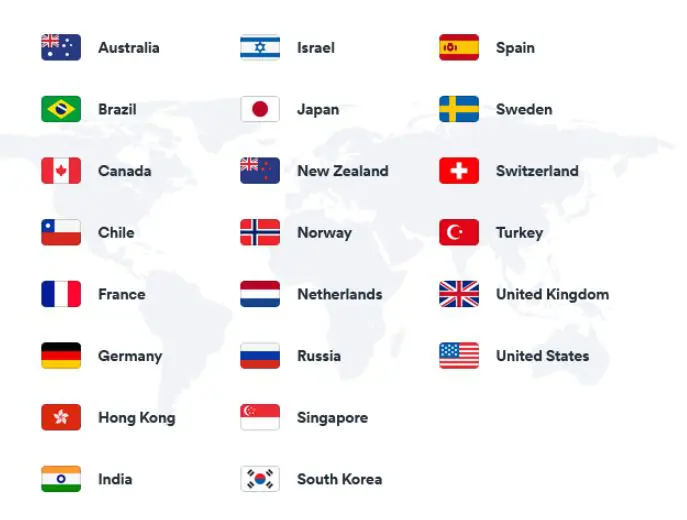
They have over 3,200 secure servers that are located in 95 countries around the world.
Fast Speeds
Surfshark is the best VPN for iPhone due to its ability to stream HD and 4K content without buffering.
Surfshark claims to be one of the fastest VPN providers available. And after numerous speed tests, we can confirm this claim.
Using a VPN like Surfshark on your iPhone may actually increase your download speeds at times because many Internet providers impose throttling methods for various streaming apps.
Zero Logs
Because Surfshark holds a strict “no log” policy this is another reason they are the best VPN for iPhone.
Surfshark will not log browsing history, IP addresses, used bandwidth, connection timestamps, network traffic, and more. On their website, Surfshark claims they “don’t monitor, track, or store what you do online.”
Unlimited Devices
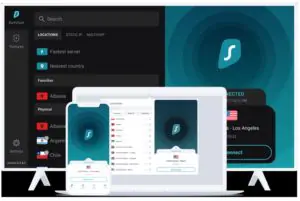
Get 82% Off Surfshark + 2 Months Free
*Surfshark provides a 30-day money-back guarantee if you aren’t satisfied so you have nothing to lose.How to Install Best VPN for iPhone
Below you will find a step-by-step screenshot guide for installing the best VPN for iPhone. 1 – Register for a Surfshark account with a discount by Clicking Here. 2 – Launch the Apple App Store and search for Surfshark.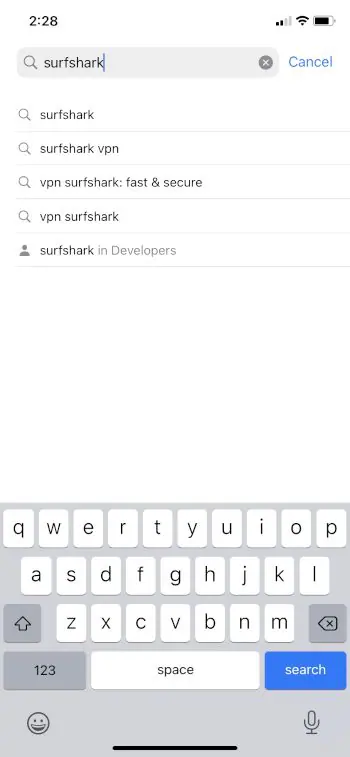
3 – Click Get.
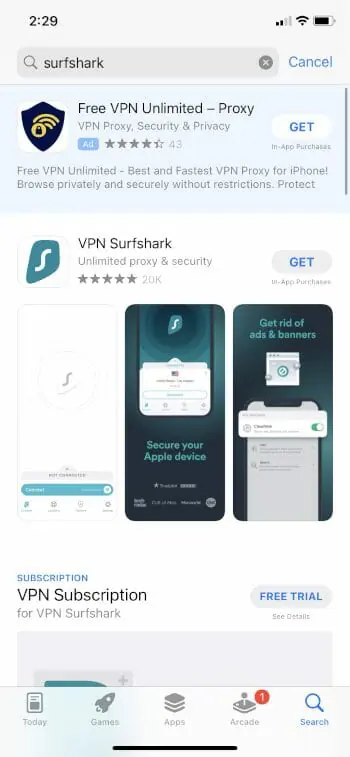
4 – Wait for the app to download.
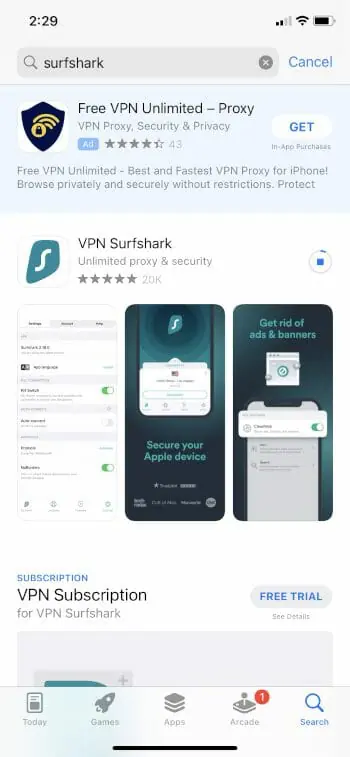
5 – Click Open
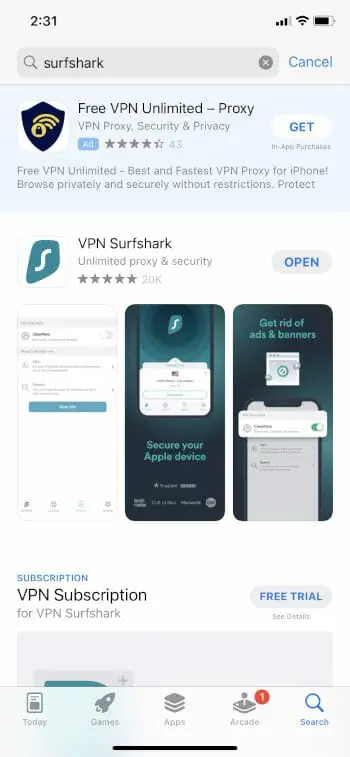
6 – Click Log In
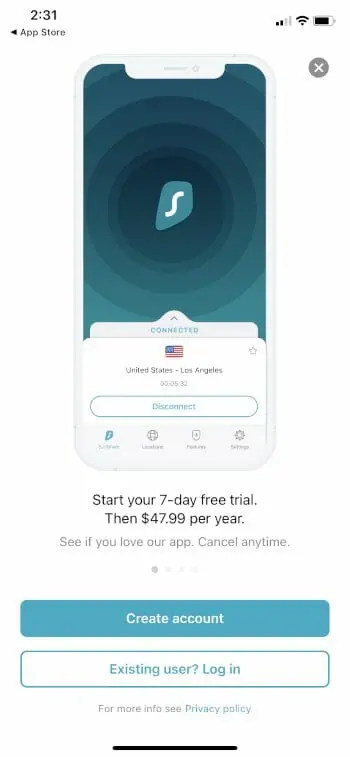
7 – Log in with your email address and password.
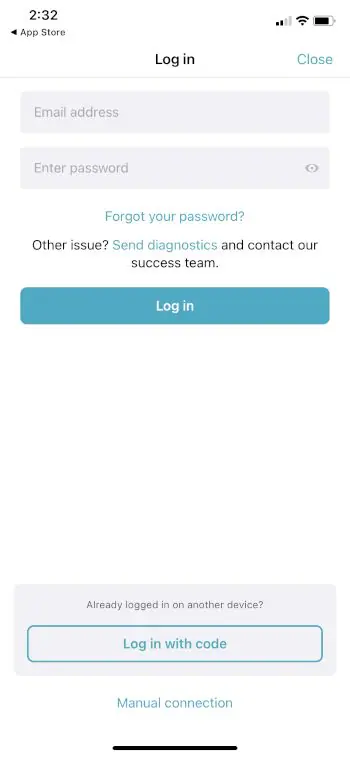
8 – Or, use a code to login from your app on any other device.
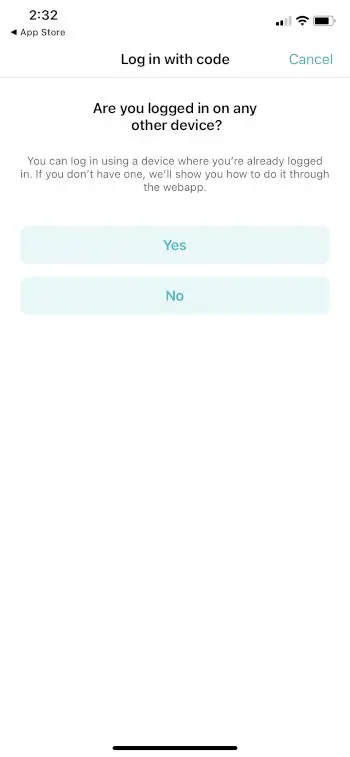
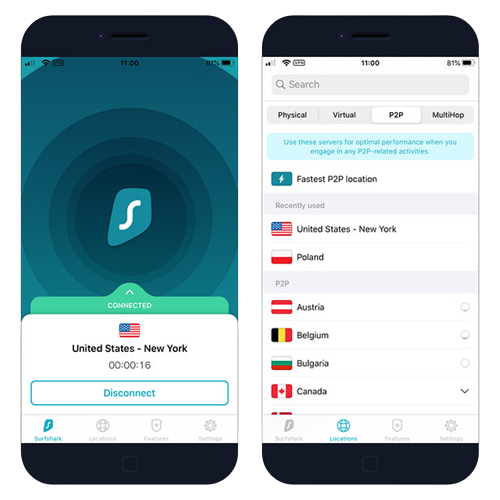
9 – You will now access the Surfshark on iPhone home screen. Choose a Server location to connect to.
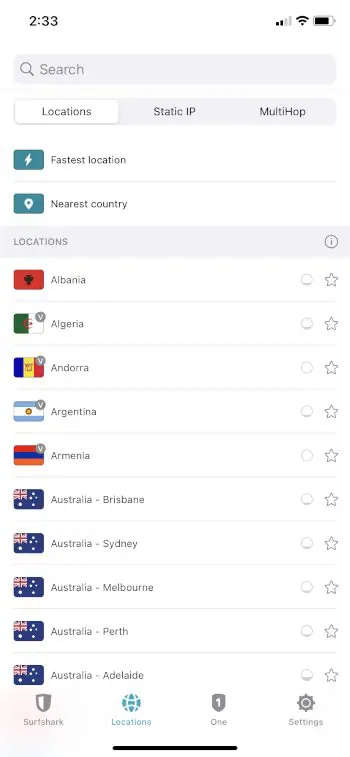
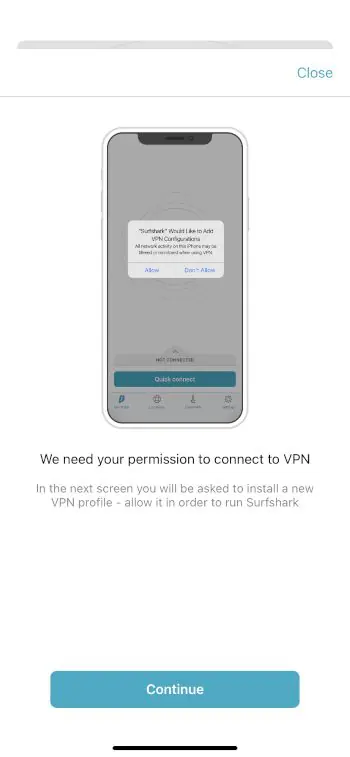
10 – Click Continue.
11 – Click Allow
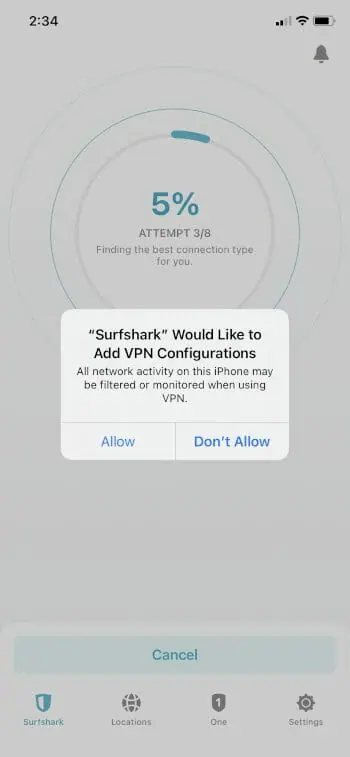
12 –Your iPhone or iPad will now establish a secure connection with Surfshark VPN.
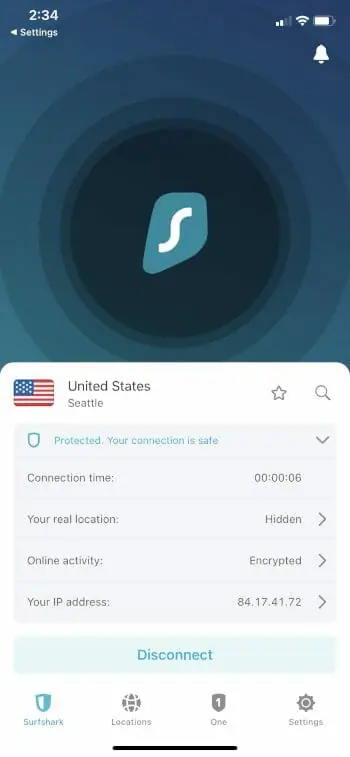
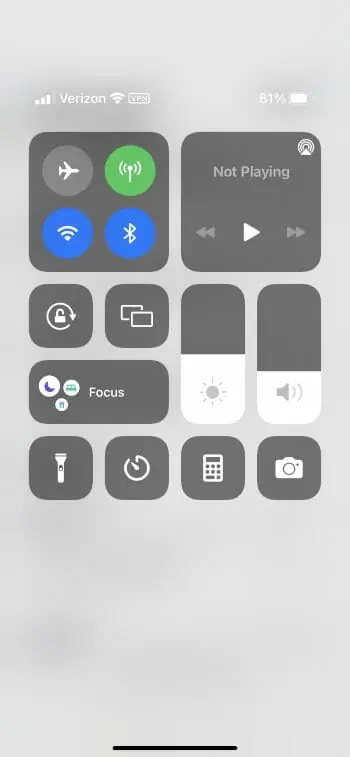
13 – Swiping down to settings will show your VPN connection is established.
Get 82% Off Surfshark + 2 Months Free
Best VPN for iPhone – Settings
Another reason Surfshark is the best VPN for iPhone is due to the large number of settings we can customize. Using Surfshark’s Quick-connect features is the best way to use this application on iPhone, iPad, or any other iOS device. This feature allows you to choose a preferred server that will be displayed on the app’s main menu for an instant VPN connection.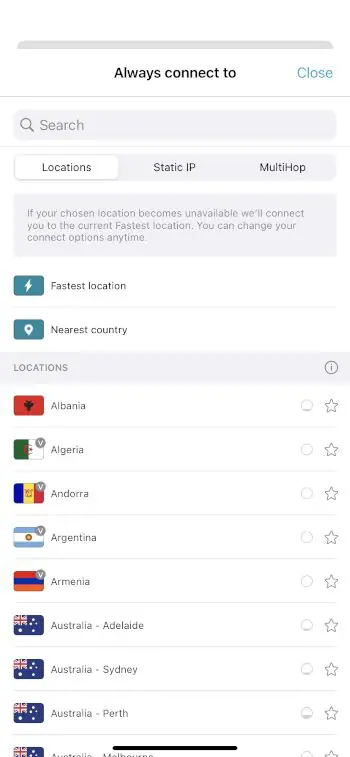
CleanWeb is a feature offered by Surfshark that works to block malware and ads on websites whenever you are connected to a Surfshark VPN.
The Kill Switch toggle is a safety measure that will disable your internet connection if you lose your VPN connection for any reason.
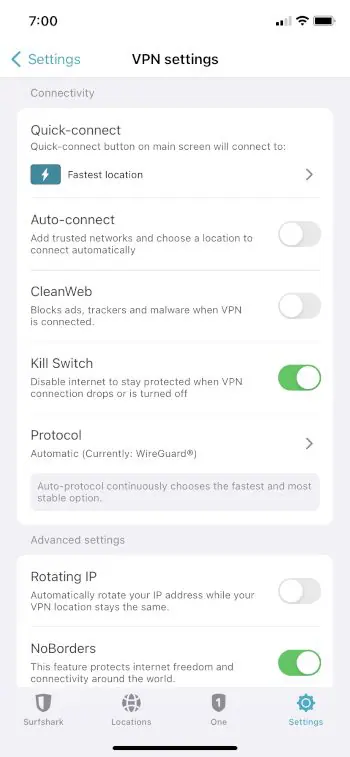
NoBoarders is a feature that protects “Internet freedom” and connectivity around the world.
There are also various VPN Protocols users can choose from including WireGuard.
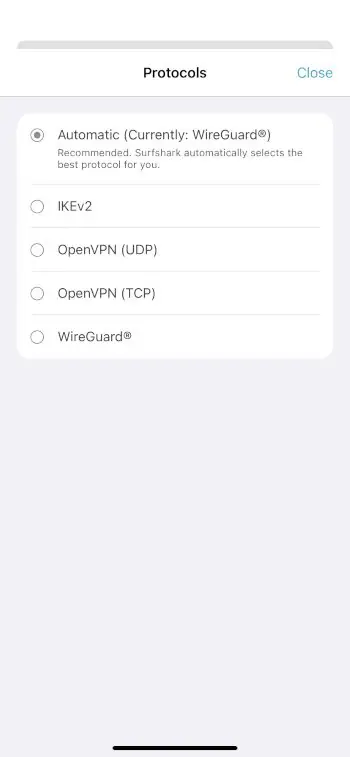
You can find other various options within the Settings of the Surfshark Application.
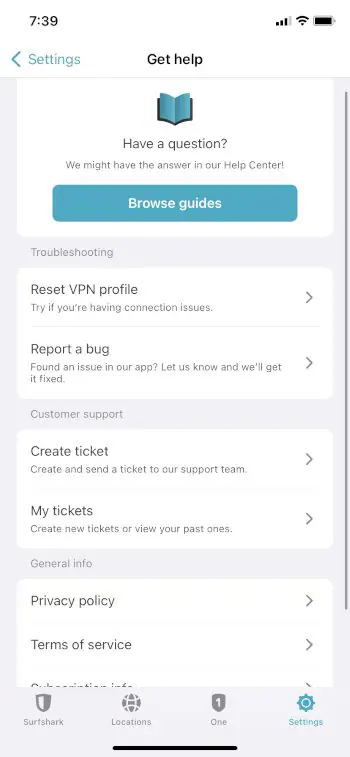
Best VPN for iPhone – Frequently Asked Questions
Why is Surfshark the Best VPN for iPhone?
Surfshark is the best VPN for iPhone for many reasons explained in this article. With Surfshark on iPhone, you are guaranteed that your VPN service provider will not keep any record of your activity or connection data, prevent any IP addresses from leaking, and automatically block all network traffic when your VPN connection is lost, and much more.
How does Surfshark VPN Work on iPhone?
Surfshark VPN works on an iPhone by routing your device’s internet connection through a private server instead of your internet service provider (ISP). This will mask your IP Address to any websites you visit.
How Many Servers are Available on Surfshark?
As of this writing, there are more than 3,200 servers across 95 countries to choose from.
What Operating System (OS) does Surfshark Support for iPhone?
Surfshark VPN supports iOS 10.3.3 and higher.
What VPN Protocols does Surfshark have on iPhone?
Surfshark provides many of the best VPN protocols for iPhone including WireGuard, OpenVPN, and more.
Should I Buy Separate Surfshark Plans for Other Devices?
No, as Surfshark supports UNLIMITED connections on multiple devices so you don’t have to spend on additional plans.
What is the Best Free VPN for iPhone?
There is no good free VPN on iPhone. Free VPNs are unsafe, sell user data, offer limited features, and should never be used on any Internet-connected device.
Can you be Tracked if you use a VPN for iPhone?
No, a VPN encrypts your IP Address from your Internet Service Provider (ISP) making your online activity anonymous.
Is Using a VPN for iPhone Legal?
Yes. A VPN is 100% legal to install and use in most countries including the U.S. However, in some countries VPNs are not legal to use.