This comprehensive guide lists the Best VPN for Firestick and why you should use one with this mega-popular streaming device.
We also provide installation instructions with various settings to ensure your privacy when streaming content and more.
The best VPN for Firestick should include some important features that will make your viewing experience safe and secure.
It should also be affordable and work on tons of other devices including iOS, Android, Windows, and more.
We provide the top five VPNs for Firestick and Fire TV devices with pros and cons for each one.
However, one VPN provider sets itself apart from the rest for many reasons and that is Surfshark VPN.
We describe in great detail why Surfshark is the best VPN for Firestick with installation instructions for any Fire TV device.
We also list other VPN services that work fabulously on Firestick, Fire TV, Android, and more so you can help determine which option is best for you.
There are many uses for a VPN on Firestick including:
- Protection from hackers, developers, and other bad actors
- Anonymous streaming
- Reduce buffering from ISP throttling
- Access Geo-Restricted content
- and more
The #1-ranked VPN in our guide, Surfshark VPN, is specifically designed and optimized for all Fire TV devices including the Amazon Firestick 4K, Fire TV Stick Lite, and more.
The Amazon Firestick is the most popular streaming device available because of its low price point and jailbreaking abilities.
Surfshark is recognized as one of the world’s fastest VPNs which is the most important feature since we are using it to stream large HD video files.

We describe in detail the Best VPN for Firestick with numerous options to help point you in the right direction when streaming.
Why Use a VPN for Firestick?
Why would you want to set up a VPN for your Amazon Firestick or Fire TV? We explain this is in detail below.
Protect Yourself Online

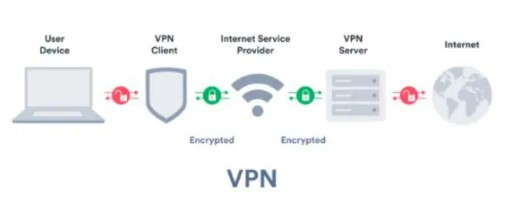
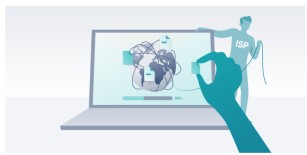
Using a VPN on Firestick will ensure that your Internet service provider (ISP), app/addon developers, hackers, site operators, and other organizations can’t monitor and log what you are streaming or downloading.
A VPN will encrypt your connection to the Internet and create an anonymous connection through a masked IP address, which will hide your identity and activity.
Increase Speeds
A VPN may increase your streaming speeds because many Internet providers impose throttling methods for various streaming apps such as Cinema HD, Kodi, Stremio, Syncler, etc.
The same is also true for Kodi users who prefer to stream with various Kodi Addons and Kodi Builds.
A VPN will eliminate ISP throttling and allow you to connect at speeds that will stop buffering on the Firestick/Fire TV.
Unblock Geo-Restricted Content
Another reason to use a VPN on your Amazon Firestick or Fire TV is to have the option of accessing sites or streams that are only available to people in certain geographical regions.
This is often referred to as “unblocking websites” which is very popular among MMA and Sports fans who are often geo-restricted in certain locations.
A quality VPN like Surfshark will help evade censorship due to geographic locations and that’s why it is claimed the best VPN for Streaming UFC and more.
The same can be said for unblocking YouTube or Netflix to access content available in other countries.
Surfshark VPN provides over 3200 server locations in 95 countries across the world so there is no shortage of connection options.

Internet companies are cracking down on those who use various 3rd party apps and torrent sites to watch/download streams that are readily available on the Internet.
A recent example of this involved the popular YTS Torrent Site Handing Over User Data to Authorities.
Prevent ISP Throttling & Censorship
Many Internet companies also serve as cable television providers, which means less money for them.
If you are using an IPTV Service, it’s common for cord-cutters to use a VPN when streaming live TV from their devices.
After testing other providers we found Surfshark to also be the Best VPN for IPTV.
Your ISP may threaten to sue you or shut down your Internet connection if they don’t like what you are accessing through your Amazon Firestick, Fire TV, Fire TV Cube, or any Internet-connected device.
A VPN service will protect your identity and make it impossible for your ISP, hackers, app developers, or any other 3rd party from seeing what you are streaming or downloading.
Click Here To Get Your Surfshark Discount
What Is the Best VPN For Firestick & Fire TV?
I have used over a dozen VPN services during the past seven years and I finally came across one that works very well with all models of the Fire TV.
One of the most important features to look at when comparing VPN services is download/streaming speed.
No matter which VPN service you choose, you will notice a drop in your download speed due to the fact that your traffic is routed through a separate VPN server and your connections are encrypted.
Surfshark provides the best download speeds when compared to their competitors and they do not keep any traffic logs of what you stream/download or access on the Internet.
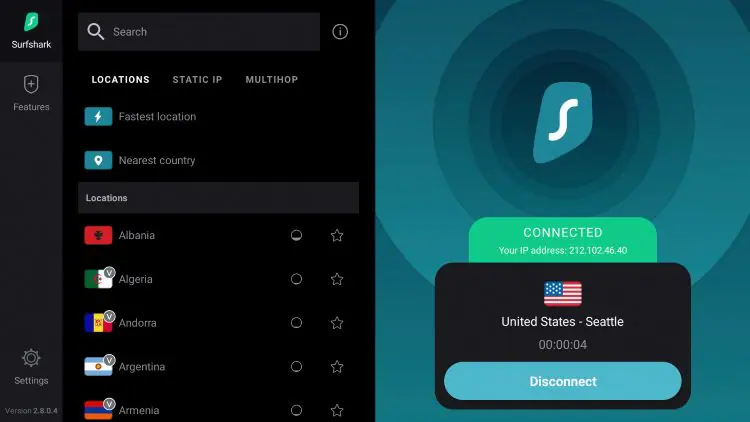
Surfshark VPN provides an optimized application for the Firestick, Fire TV, Fire TV Cube, and Fire TV Television that works excellently with the remote.
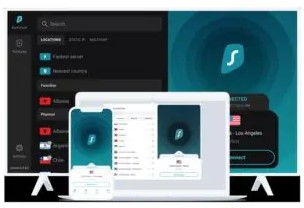
The user interface makes it simple to use a VPN on your Fire TV device. Most VPN services do not provide a Fire TV/Fire TV Stick application which makes Surfshark the preferred choice due to its ease of use.
Another feature that sets Surfshark apart as the Best VPN for Firestick is the provided Kill Switch which is usually not available with VPN apps on Firestick/Fire TV.
Surfshark does not keep track of any traffic logs so if they were ever requested to provide your streaming history, it doesn’t exist.
This is also one of many reasons why Surfshark is regarded as the Best VPN for Streaming among the growing cord-cutting community.
Not only do I use a VPN on my connected devices in my home, but I also use it when I am traveling. You should NEVER connect to a public WiFi hot-spot without protection through a VPN service.
Surfshark will allow you to use their VPN service on unlimited devices at the same time with one account. This is great for those of us who use a VPN service on our computer, phone, and Firestick or Fire TV.
Surfshark also provides applications that can be used on Windows, Mac, Linux, Android, and iOS. The mobile applications for both Android and iOS are outstanding.
Due to their large ecosystem of supported operating systems, you can use your account on your different devices.
Surfshark supports a few VPN protocols on Fire TV devices including OpenVPN (TCP) and OpenVPN (UDP). We suggest using the OpenVPN (UDP) protocol for faster speeds.
The OpenVPN protocol performs best on the Firestick/Fire TV. This is the default option and allows for an easier installation setup.
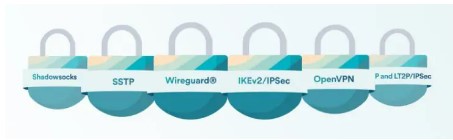
For more detailed information on VPNs, we highly suggest viewing our in-depth VPN Guide below.
What is a VPN? Your Complete VPN Guide
If you ever travel and connect to public WiFi hot-spots, you should ALWAYS connect to the access point through a VPN service. You can use your same Surfshark account on your other devices which is a great benefit.
You will find both a video tutorial and screenshot guide below on how to install a VPN on the Firestick or Fire TV.
The video covers installation instructions along with important settings that may be customized within the application.
Click Here To Get Your Surfshark Discount
Best VPN for Firestick – Complete List
Listed below are the Best VPN for Firestick and Fire TV devices to protect your privacy when streaming.
1. Surfshark VPN – Amp Streams Choice for Best VPN for Firestick

Surfshark Highlights:
- Fast download speeds
- Ad/malware blocker
- Works with Netflix and Amazon Prime
- 30-day money-back guarantee
- Kill Switch capabilities on Firestick
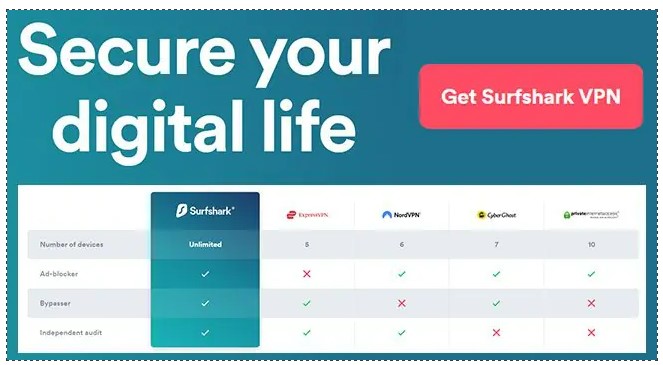
- Unlimited Device Connections
Surfshark is the Best VPN for Firestick due to its high-powered VPN speeds, no-log policy, and much more.
The official Surfhark App is filled with various features and settings that will improve your overall streaming experience.
This includes Surfshark’s Kill Switch feature that works perfectly on Firestick and Fire TV devices.
Most VPN Providers do not have a Kill Switch that works on Firestick and this sets Surfshark apart from others.
A Kill Switch will automatically disable your connection if your VPN disconnects for any reason which will ensure you are always protected.
Surfshark offers Unlimited Device connections which many VPN Providers do not have making sure none of you will never run out of connections.
It is also one of the most affordable options available which is why we list it as the #1 choice for Best VPN for Firestick.
How to Install Surfshark on Firestick
1 – Register for a Surfshark VPN account.
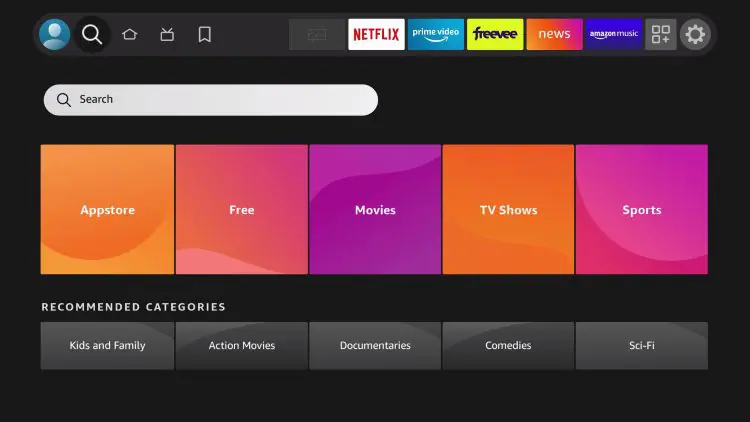
2 – From the home screen, hover over the search tab and click on the search bar.
3 – Search for and select Surfshark.
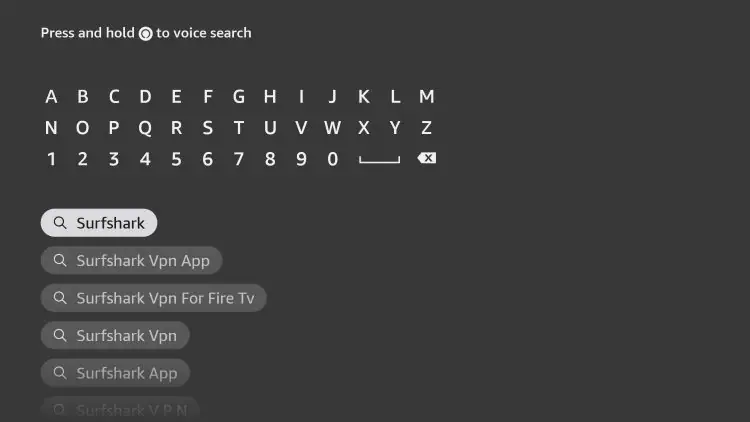
4 – Choose the Surfshark VPN Application (the Best VPN for Firestick).
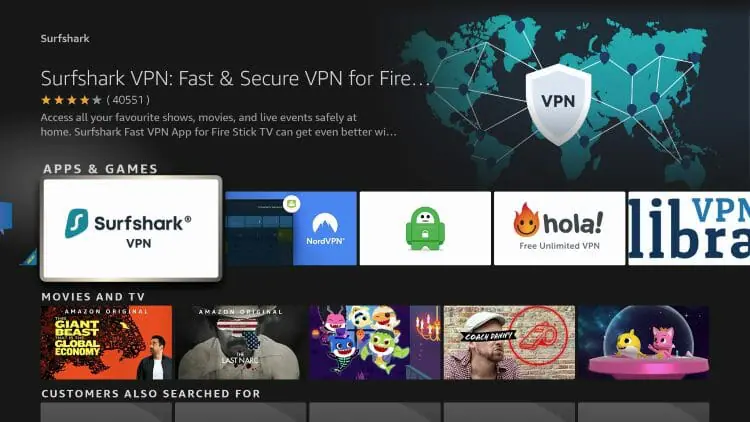
5 – Click Get or Download.
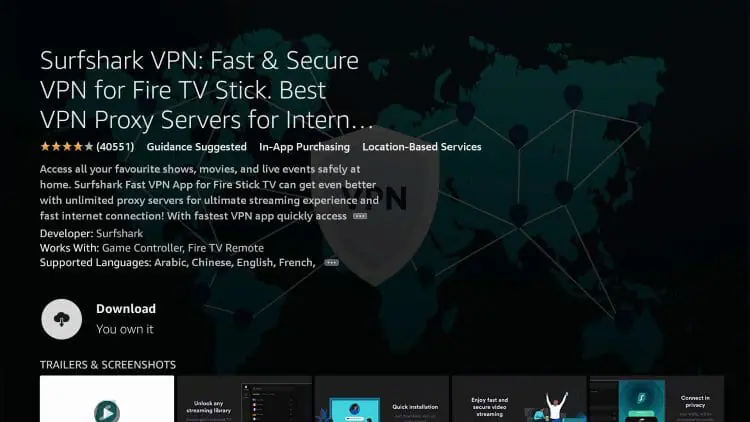
6 – Wait for the app to download.
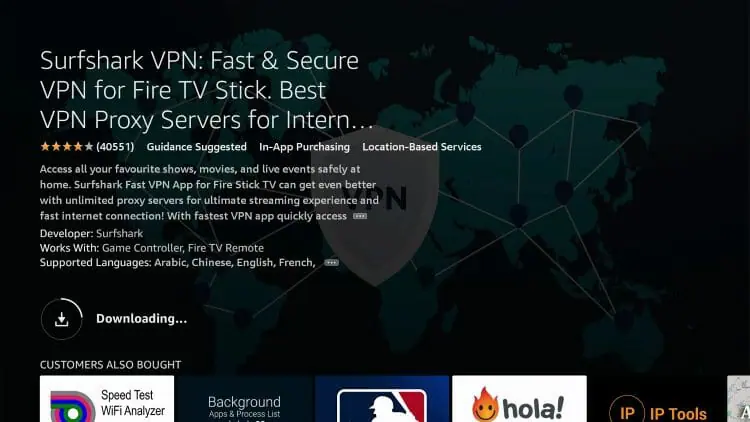
7 – You will then encounter “Surfshark VPN Ready to Launch!” message. Click to Open.
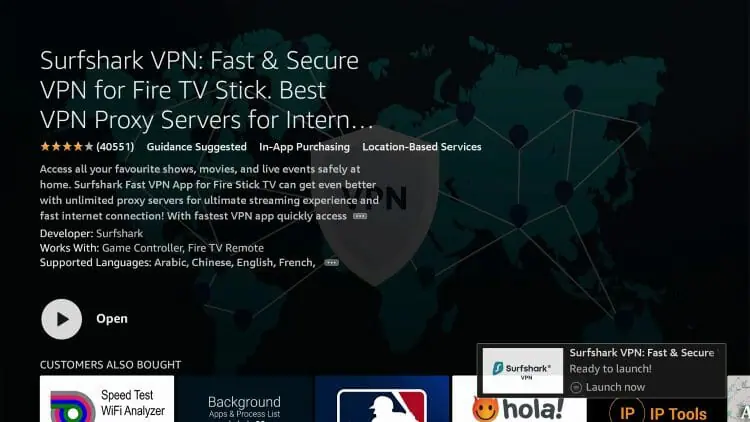
8 – Log-In with your Surfshark Account and connect to your preferred VPN Server.
2. IPVanish
IPVanish Highlights:
- Unlimited Device Connections
- Sock5 Proxy for Torrenting
- Strict No-Log Policy
- Fast VPN Servers
- Cooperative with Real-Debrid
- Kill Switch and Split Tunneling Configurations
- 30-Day money-back guarantee
IPVanish is another hard-working VPN Provider that is well-known for Firestick devices and much more.
With over 40,000 IP addresses in 75+ locations, you will have access to content anywhere in the world.
IPVanish is also the Best VPN for Torrenting which many streaming apps & APKs use to provide streaming links.
They feature a strict no-log policy so your data will never be released and feature numerous VPN Protocols including WireGuard, OpenVPN, and IPSec.
IPVanish is another fast VPN for Firestick with a sleek user interface that works on any device including Android, iOS, Mac, and more.
It also offers Unlimited Device Connections to protect your privacy on as many devices you want simultaneously.
How to Install IPVanish on Firestick
1 – Register for a IPVanish VPN account with a discount by Clicking Here.
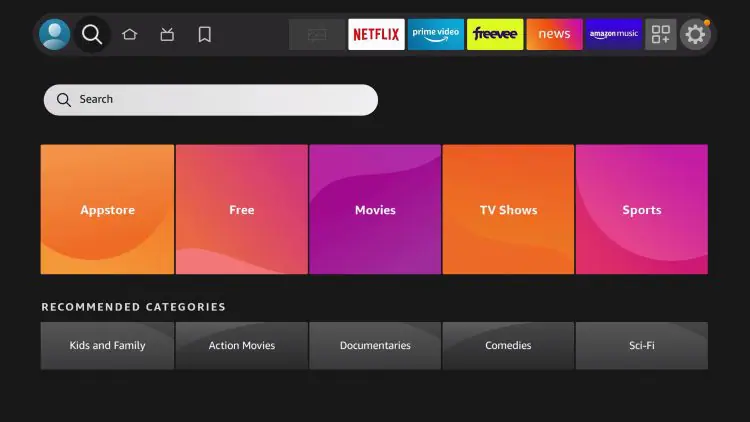
2 – From the home-screen, hover over the search tab and click on the search bar.
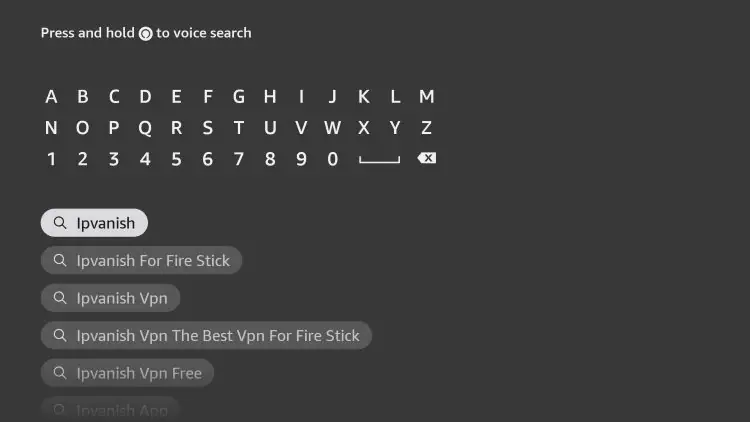
3 – Search for and select IPVanish.
4 – Choose the IPVanish VPN Application.
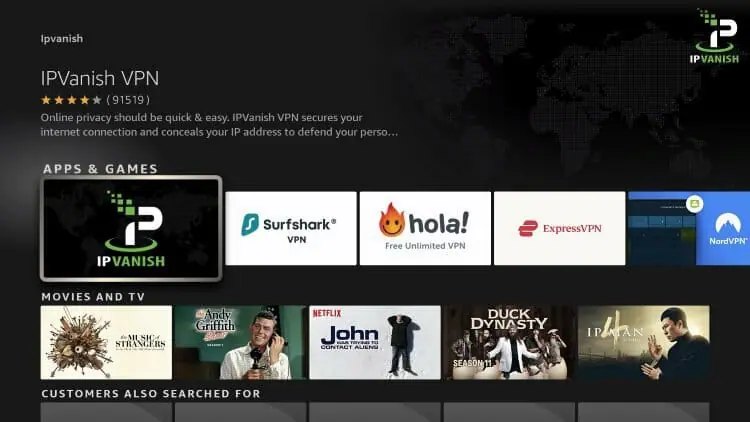
5 – Click Get or Install.
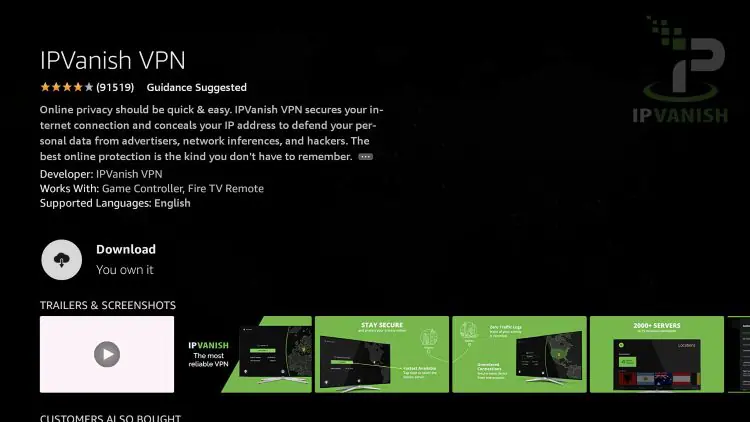
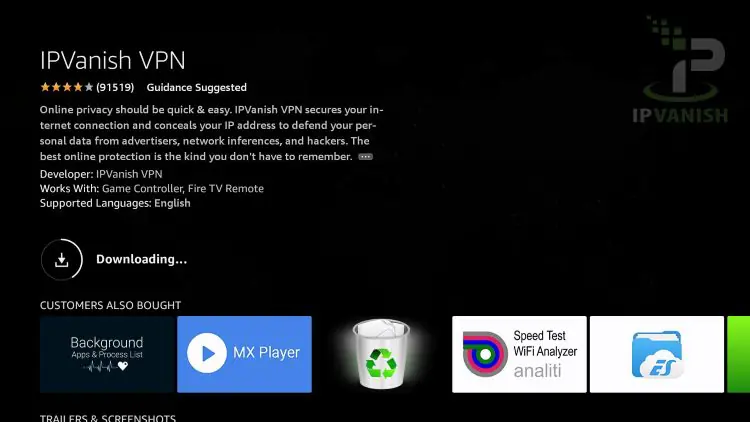
6 – Wait for the app to download.
7 – You will then encounter “IPVanish VPN Ready to Launch!” message. Click to Open.
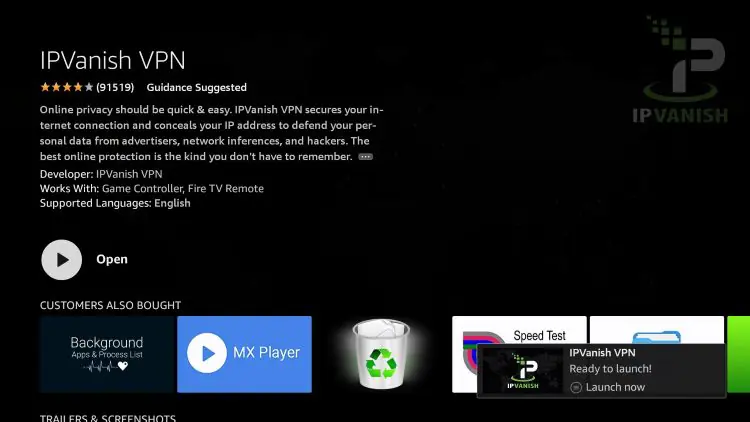
8 – Log-In with your IPVanish Account and connect to your preferred VPN Server.
3. NordVPN

NordVPN Highlights:
- Dedicated IP Address
- Kill Switch Capabilities
- Obfuscated Servers
- Fast Download Speeds
- No-Logs Policy
Another no-log service that is sure to protect your privacy on any device including Firestick is NordVPN.
Nord is incorporated in Panama where there are no data retention laws to adhere to which means you can be sure your data is safe.
They also offer a Threat Protection feature that blocks incoming threats such as malware, ads, and more.
NordVPN has over 5200 servers in 60 countries which will allow you to access restricted content anywhere in the world.
Nord’s feature component is its obfuscated servers that will hide the fact that you are using a VPN.
We tested this with various apps and it worked well except for accessing Netflix which is notorious for blocking VPN Services.
How to Install NordVPN on Firestick
1 1 Register for a NordVPN account with a discount by Clicking Here.
2 – From the home screen, hover over the search tab and click on the search bar.
3 – Search for and select NordVPN.
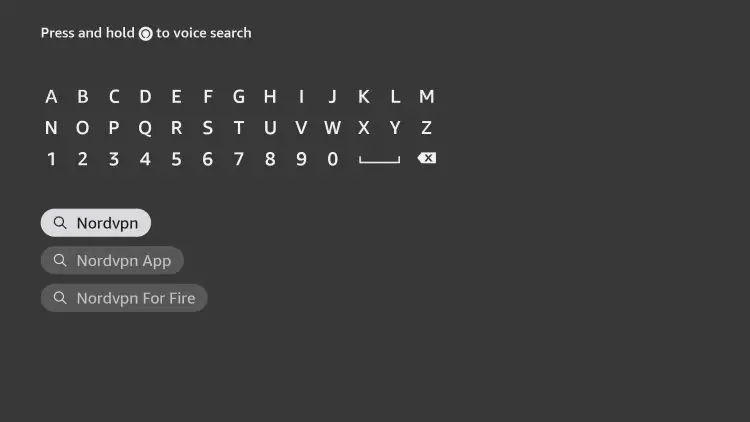
4 – Choose the NordVPN Application.
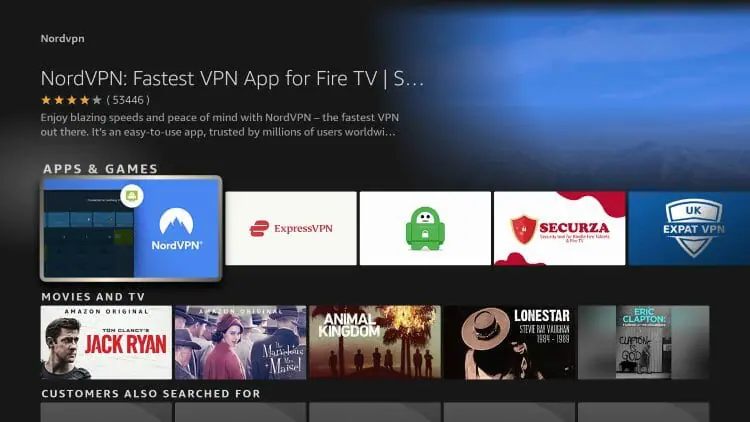
5 – Click Get or Download.
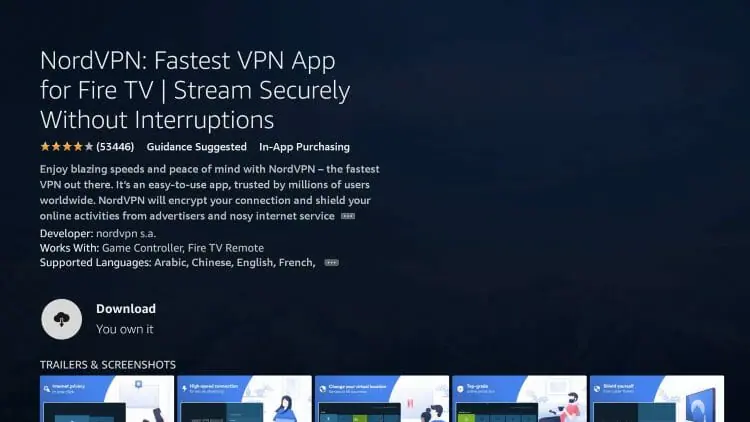
6 – Wait for the app to download.
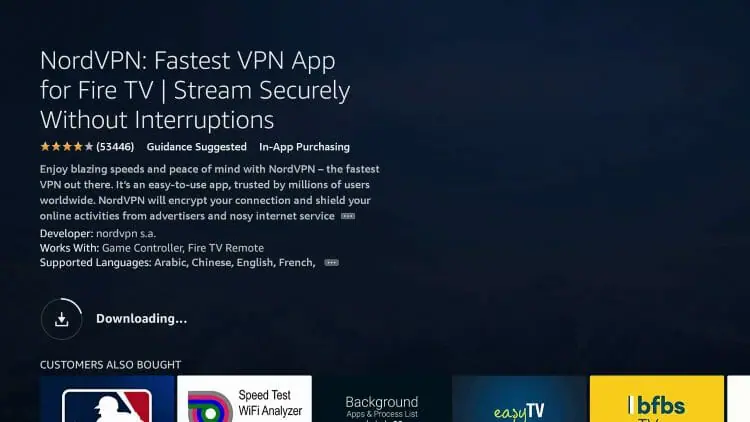
7 – You will then encounter “NordVPN Ready to Launch!” message. Click to Open.
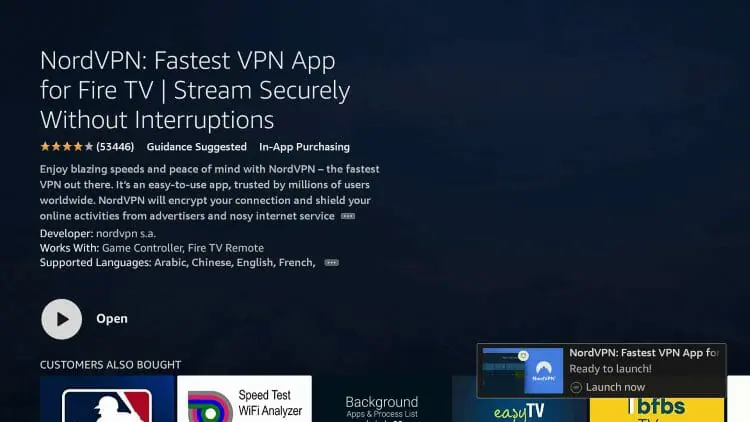
8 – Log-In with your Nord Account and connect to your preferred VPN Server.
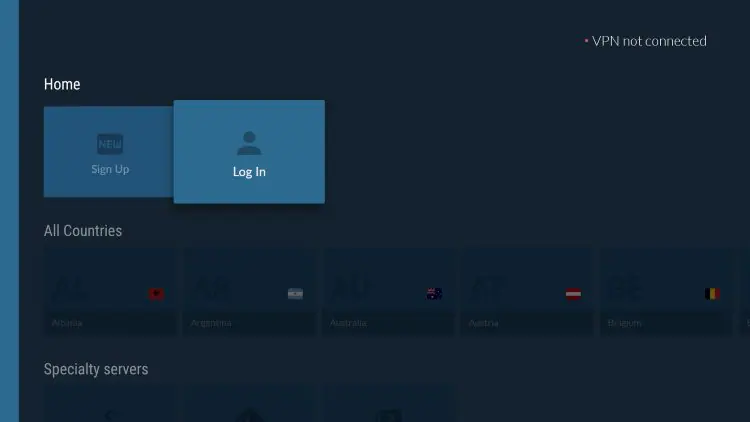
4. ExpressVPN

ExpressVPN Highlights:
- Over 160 VPN Locations
- Feature-Rich VPN Application
- Kill Switch Capabilities
- Split Tunneling Capabilities
- No-Log Retention Policy
- Extremely Fast Download Speeds
ExpressVPN is one of the most well-known VPN Providers available today and works fabulously on Firestick devices.
It is touted as one of the fastest VPNs available and will ensure you don’t have any buffering issues.
There are plenty of connection options with over 3,000 servers in 90+ locations around the world.
The ExpressVPN App works perfectly on Firestick and Fire TV as tons of other devices including Android TV Box and iPhone/iPad.
However, Express only works on 5 devices at once which falls short of others on this list. We would like to see more connections provided as many households have upwards of 12 internet-connected devices at one time!

How to Install ExpressVPN on Firestick
1 – Register for an ExpressVPN account.
2 – From the home screen, hover over the search tab and click on the search bar.

3 – Search for and select ExpressVPN.

4 – Choose the ExpressVPN Application.

5 – Click Get or Download.

6 – Wait for the app to download.

7 – You will then encounter “ExpressVPN Ready to Launch!” message. Click to Open.
8 – Log-In with your Express Account and connect to your preferred VPN Server.

5. StrongVPN

StrongVPN Highlights:
- Fast Speeds
- Zero-Log Policy
- WireGuard® protocol
- Unblocks popular Streaming Apps
- Real-Debrid Compatible
- 12 Simultaneous Connections with One Account
StrongVPN is another fabulous choice and one of the Best VPN for Firestick options available today.
It works with real-debrid which is popular among Kodi users on Firestick for its high-quality streaming links.
Strong was the first VPN Service to implement WireGuard® protocol which is one of the best protocol options for any device.
It works well to unblock popular apps that typically restrict access including Netflix, Amazon Prime, and more.
Users will have access to 12 connections at any given time to protect a large number of devices at once.

How to Install StrongVPN on Firestick
1 – Register for a StrongVPN account with a discount by Clicking Here.
2 – From the home screen, hover over the search tab and click on the search bar.

3 – Search for and select StrongVPN.

4 – Choose the StrongVPN Application.

5 – Click Get or Download.

6 – Wait for the app to download.

7 – You will then encounter “StrongVPN Ready to Launch!” message. Click to Open.

8 – Log-In with your Strong Account and connect to your preferred VPN Server.

Best VPN for Firestick – Settings & Details
There are tons of features within the Surfshark App that make it the Best VPN for Firestick.
We detail all settings and features below to help you get the most out of your VPN connection.
Upon launching, you can quickly connect to the fastest server option within the Surfshark App.

CleanWeb is Surfshark’s prominent feature that works to block ads, malware, trackers, and more.
Most VPN apps do not have this option on Firestick and Fire TV devices which is one of the main reasons Surfshark is the Best VPN for Firestick.

Bypass VPN feature will allow you to choose apps that will connect to the internet without being encrypted via Surfshark VPN.
This is Surfshark’s Split Tunneling option that works perfectly on any device you prefer.

The Route via VPN option works in the same manner as Bypass, but will only launch these applications through a VPN connection.

Auto-connect is the best way to use Surfshark on Firestick and will automatically connect to you to your preferred server option.

You can use the Fastest location option which will provide you with the best connection for faster download speeds.
This is extremely important on Firestick devices where users stream media files in high definition.

Kill switch is a feature within the Surfhsark App that sets it apart from the rest.
Enabling this will disable your internet connection if your VPN is ever interrupted for any reason.
This is one of the main reasons we have chosen Surfshark as the Best VPN for Firestick to ensure you are always protected on this device.
This is extremely important on Firestick devices where users stream media files in high definition.

There are numerous Protocol options available to choose from within the app including:
- WireGuard
- IKEv2
- OpenVPN/UDP
- OpenVPN/TCP

Best VPN for Firestick – Speed Tests
We tested Surfshark speeds on a Fire TV Stick 4K Max to determine the overall VPN speed.
In the test below, we are using WireGuard Protocol as this was the fastest option.

How To Test VPN for Firestick Is Working
After you have installed and activated a VPN for your Firestick or Android Box, you may wonder how you can test to ensure that the service is working properly. This is simple!
Follow the quick steps below to test out your VPN connection.
1 – Connect to a Surfshark Server in your preferred location.

2 – Install the Amazon Silk Browser for free on your Fire TV or Fire TV Stick through the Amazon App Store
(For those using Android TV Box, we suggest the Puffin Browser).

3 – Launch the Silk Browser.

4 – Click the search bar on top

5 – Within the address bar of the browser, type the following address – dnsleaktest.com and click Go.

6 – That’s it! You can now see your IP Address has changed after connecting to Surfshark VPN

Free VPN for Firestick, Fire TV, and Android TV Box

Is there a free VPN for Firestick, Fire TV, or Android TV Box? Yes but they all come with limitations.
The free Firestick VPNs provide slow download speeds and then they try to up-sell you to their “faster plan”. This is salesmanship at its best so beware.
It is crucial to use a VPN that provides fast download speeds due to the fact that we are sending large video files to our Firestick or Fire TV.
There are also free services available but they will turn around and sell your user data to a third party which negates the reason for having a VPN in the first place.
Refer to the guide below for more information on free VPNs and why you should avoid them when streaming/downloading.
Surfshark VPN has an untarnished reputation which is important when choosing a service designed to protect your identity and privacy.
Best VPN for Firestick – Troubleshooting Tips
Most of you will never need these, but just in case TROYPOINT has you covered.
- If your Surfshark on Firestick/Fire TV/Fire TV Cube VPN application is not connecting, go into Settings / VPN Protocol and change to OpenVPN (TCP) or OpenVPN (UDP), whichever one isn’t currently active
- Restart both your Fire TV/Stick and router by unplugging from power, let sit for a minute and then plug back in.
- If your download speed seems slow or you are experiencing buffering, choose a different server, close to where you are located within the VPN application. Keep in mind that there are multiple servers available for each location and you can try each of them to see which provides better results.
- If you are having problems logging into Surfshark VPN, double-check that there are no spaces within the email address that you use as your login. Sometimes there is a space that is automatically added following the @ symbol.
- Uninstall the Surfshark VPN app on the Fire TV or Fire TV Stick by going into Settings / Applications / Manage Applications / Surfshark and then click uninstall. After you have removed the VPN, reinstall it with the guide above.
- If you forgot or lost your Surfshark password, you can reset it by clicking the “Forgot Password” link within the login area on the Surfshark Website.
- No VPN will work on the 1st Generation Firestick (released in 2014) due to low processing power.
Surfshark VPN 24/7 Live Support
Surfshark provides 24/7 live support through their Website if you have questions about your account, pricing, or technical support.
You will see a Support button in the navigation bar at the bottom of the Surfshark VPN Website. Click that!
Best VPN for Firestick FAQ
What is the Best VPN for Firestick?
The best VPN for Firestick is Surfshark due to its blazing fast speeds and zero-logging policy. It’s important to use a fast VPN due to the fact that you are streaming large HD files with the Firestick.
Is there a Free VPN for Firestick or Fire TV?
Yes, there are free VPNs but they are slow and won’t allow you to stream HD content. Most Free VPNs will sell your data to 3rd parties and this is how they make money.
Why does my Download Speed Decrease when Using a VPN for Firestick?
Download speed will decrease due to the fact that you are routing your traffic through a 3rd party server and encrypting your connection. Download speed will still be fast enough to stream HD content.
Does Surfshark VPN Work with Netflix?
Yes, we tested Surfshark with Netflix and it works fabulously while many VPNs will not provide access to Netflix.
What Does a VPN for Firestick do?
Using a VPN for Firestick encrypts your connection to the Internet and masks your IP address. This prevents your ISP, government, hackers, and app/addon developers from logging what you are accessing while online.