Fixing So Player Installation Issues — Quick Troubleshooting & Solutions
So Player is a commonly sideloaded IPTV app for Firestick, Android devices, and PCs. Install failures usually trace back to network problems, incorrect provider credentials or settings, or device restrictions that block unknown apps. This guide walks you through a short diagnostic checklist, safe sideloading steps for Firestick and Android, and targeted fixes for common error messages so you can get back to streaming quickly. Each section includes practical lists and lookup tables to speed repairs. We use terms like So Player APK, provider ID, Downloader app, and VPN compatibility to keep instructions actionable and easy to search.
Why So Player Might Not Work on Your Device
Most So Player failures fall into three buckets: connectivity issues that stop the app reaching servers, wrong or blocked provider credentials, and device settings that prevent sideloaded APKs from installing or running. Start with basic network checks, confirm your provider details, and verify device storage and permissions before diving deeper. The following sections break down common installation errors and show how internet problems can interfere with install and startup.
Common So Player Installation Errors
Typical messages include “bad credentials”, “unauthorized IP”, “download failed”, or “app not responding.” These usually point to a typo or expired account, an IP the provider hasn’t whitelisted, an interrupted download from an unstable connection, or limited device resources such as low storage or blocked install sources. When you see one of these errors, note the exact text, reboot the device, and check storage and app permissions before re-entering provider data. Those quick checks reveal whether you need a credential reset, an IP whitelist, or a fresh APK.
How Your Internet Connection Affects So Player Installation

A weak or inconsistent connection can produce incomplete APK downloads, timeouts during login, and playback buffering that looks like an app crash. Network symptoms include failed downloads, constant buffering, or inability to reach the provider’s server. Run a speed test, reboot the router, and try a different network (mobile hotspot or another Wi‑Fi) to isolate ISP or local Wi‑Fi problems. Also note that VPNs, strict NATs, or firewalls can block provider authentication and trigger unauthorized IP errors — temporarily disable VPNs or test without them to see if that resolves the issue.
How to Install So Player APK on Firestick and Android Devices
Sideloading So Player safely means enabling installs from unknown sources for the installer app, using a trusted APK, and granting only the permissions the app needs. Confirm available storage, Android/Fire OS compatibility, and that you have your provider credentials ready. Below are the common sideload steps for Firestick using Downloader and the general APK install flow for Android devices. After installation, clear cache, verify credentials, and play one stream to confirm everything works.
Steps to Enable Unknown Sources on Firestick
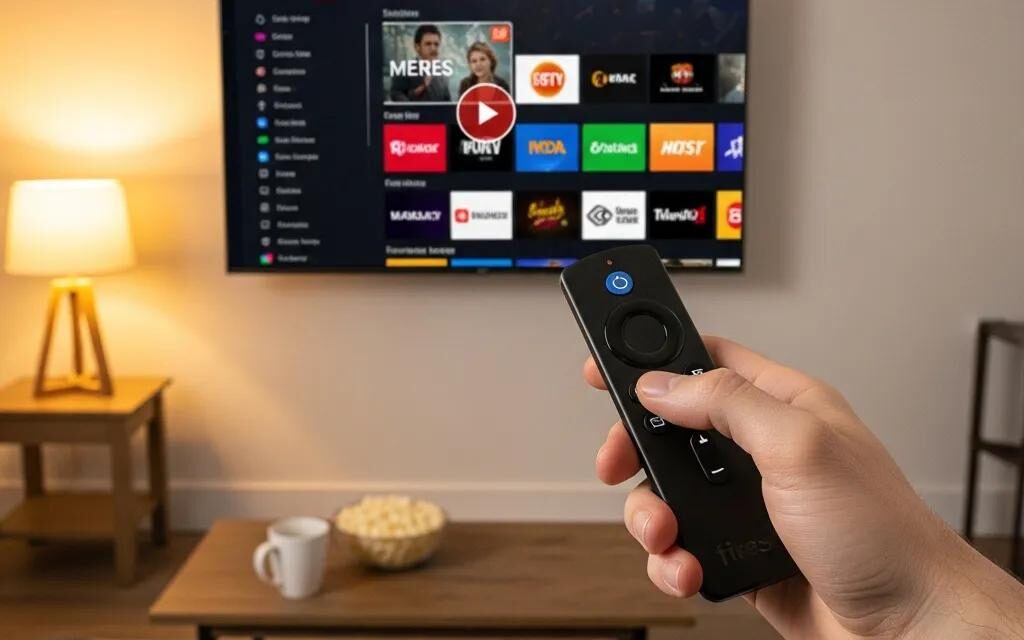
On Firestick, allow sideloads by enabling the install permission for the Downloader or file manager app. Go to Settings → My Fire TV → Developer options and toggle Install Unknown Apps for Downloader (newer Fire OS versions list this under Apps → Install Unknown Apps). This lets Downloader save and run APK installers while keeping the permission scoped to that app. After you install So Player, consider reverting the setting or limiting it back to Downloader to reduce security exposure.
Using Downloader to Sideload So Player
Downloader streamlines fetching APKs and running the installer without a PC. Open Downloader, enter the APK URL supplied by your IPTV vendor (verify the source before downloading), then download and tap Install. Grant any runtime permissions requested and delete the APK after install to reclaim space. If a download fails, try a different official source, Aptoide, or an ADB install as a fallback. The device checklist below summarizes device-specific steps and common warnings to avoid install issues.
| Device | Step / Setting | Expected Result / Warning |
|---|---|---|
| Firestick | Enable Install Unknown Apps for Downloader; use Downloader to fetch APK | Allows safe sideloading when limited to Downloader; remember to restrict permission after install |
| Android phone/tablet | Allow Install Unknown Apps from browser/file manager; run APK installer | Standard Android flow — confirm storage and permissions before running installer |
| Android TV / Box | Use a file manager or Aptoide TV; check APK matches device architecture (ARM/ARM64) | Some boxes need a matching APK build; the wrong architecture may fail without a clear error |
How to Resolve Specific So Player Error Codes and Issues
Matching an error message to its typical cause lets you apply a precise fix quickly. The table below is a compact lookup for common errors, followed by short how‑to checks for credential and IP lock problems. If those basic fixes don’t work, we note when it’s time to contact your IPTV provider for backend help.
| Error / Problem | Likely Cause | Fix / Action |
|---|---|---|
| Bad credentials | Incorrect provider ID or password | Carefully re‑enter provider ID and password; confirm the account is active with your provider |
| Unauthorized IP address | Provider IP whitelist or VPN causing a mismatch | Disable VPN or ask your provider to authorize your public IP; consider a static‑IP VPN if needed |
| Download failed / Parse error | Corrupt or incomplete APK, or an untrusted source | Re‑download from a trusted provider link or use an alternate sideload method |
Fixing So Player “Bad Credentials” Errors
“Bad credentials” means the app can’t authenticate your provider ID or password. This is usually a typo, an expired account, or misentered fields. Re‑type the provider ID and password exactly (watch case and extra spaces), then check the account status with your provider if login still fails. Clear app cache or reinstall the APK if problems persist, and ask the provider to reset credentials only after you’ve confirmed device and network are working to avoid unnecessary support tickets.
Handling “Unauthorized IP Address” Errors
Unauthorized IP messages mean the public IP doesn’t match the provider’s allowed list — often caused by ISP IP changes or active VPN use. From the same device, check your public IP using an IP lookup and compare it to what the provider expects. Disable VPNs temporarily and retry login. If you must use a VPN, ask about static‑IP VPN options or request that your current public IP be whitelisted. For frequent dynamic IP changes, discuss a long‑term authorization or switch to a VPN that offers a stable outbound IP.
When to Consider Alternatives to So Player
Consider switching when issues recur despite correct credentials, when you have security or stability concerns, or when So Player lacks features you need. Balance the time spent troubleshooting against the benefits of a more actively supported player. Frequent compatibility problems, missing EPG features, or unreliable credential handling are reasonable triggers to move on. Use the checklist below to decide whether to keep troubleshooting or try a replacement, and consult comparative reviews to find players that fit your device and needs. Amp Streams helps you discover and compare streaming apps, VPNs, and related tools so you can make informed choices that match your setup.
When evaluating alternatives, weigh device compatibility, credential workflows, EPG support, and VPN friendliness. The quick comparison table below highlights a few common options to help you choose.
Best So Player Alternatives for IPTV Streaming
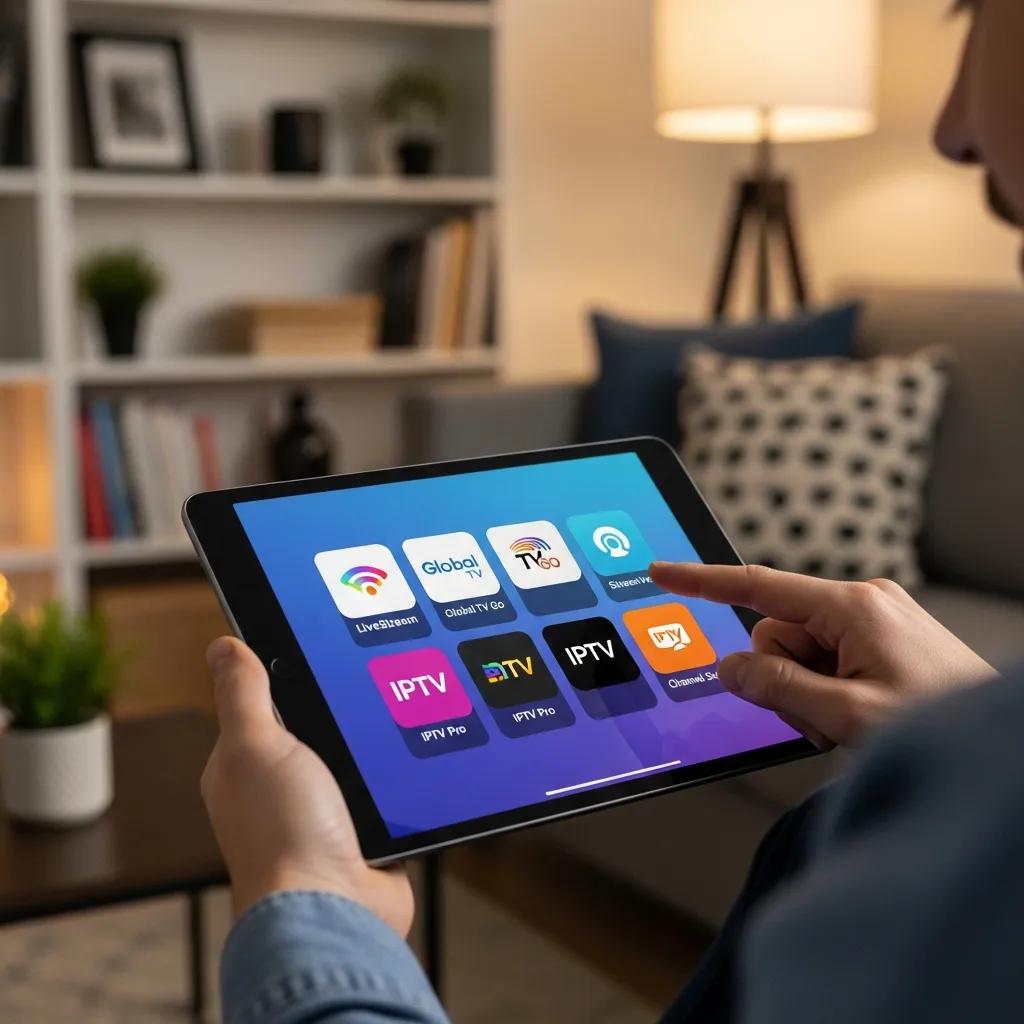
- TiviMate: Great for Android TV and Firestick users who want advanced EPG and playlist management.
- Perfect Player: Lightweight, efficient OSD and solid playlist support for low‑resource devices.
- XCIPTV: Good choice if you want integrated account management and catch‑up features.
Amp Streams is a resource for discovering, comparing, and streaming technologies. We publish unbiased reviews and practical guides to help you pick streaming services, VPNs, and apps that work with your gear.
| Alternative | Key Features | Compatibility / Notes |
|---|---|---|
| TiviMate | Advanced EPG, playlist management | Firestick (sideload), Android TV |
| Perfect Player | Lightweight, customizable OSD | Android devices, PCs via APK |
| XCIPTV | Account integration, catch‑up | Android‑based devices and set‑top boxes |
Choosing the Right IPTV Player for Your Device
Pick a player based on compatibility, how it handles EPG and playlists, credential support, and VPN friendliness — balanced with your comfort level. Casual viewers usually prefer simple import and playback; power users need advanced EPG, catch‑up, and robust provider integration. Test a candidate briefly, verify playback stability on your device, and confirm credential workflows before committing. Prioritize apps with active updates and a proven track record of handling provider authentication and IP changes.
Amp Streams aims to make discovery and comparison straightforward, offering concise reviews and recommendations to help you choose the right streaming tools for your setup.
Frequently Asked Questions
What should I do if So Player keeps crashing on my device?
Start with the basics: clear the app cache and data, then reboot the device. Make sure the device OS and So Player are up to date. If crashes continue, uninstall and reinstall the APK and check for other apps consuming resources. Also confirm your device meets the app’s minimum requirements.
Can I use So Player on multiple devices with the same account?
Usually yes, but it depends on your IPTV provider’s policy. Some providers allow simultaneous streams, others restrict concurrent devices. Check your provider’s terms and, if you hit login limits, log out of other devices before signing in on a new one.
How can I improve streaming quality on So Player?
Use a stable, fast connection — wired Ethernet is best. Close bandwidth‑hungry apps and reduce devices on the network. Lower the stream quality in the app if available, and try a VPN only if it doesn’t interfere with authentication. Keep the app updated for performance fixes.
What should I do if I forget my provider credentials?
Search your registration emails for account details, then visit the provider’s site or contact support to recover or reset credentials. Be ready to verify identity; providers commonly require proof before changing account details.
Is it safe to use a VPN with So Player?
A VPN can protect your privacy, but misconfigured VPNs may block authentication or trigger unauthorized IP errors. If you need a VPN, choose one known to work with IPTV or one that provides a static IP, and confirm your provider allows VPN use.
How do I troubleshoot buffering issues on So Player?
Check your internet speed and stability with a speed test. Restart your router, connect via Ethernet if possible, and limit other devices using the network. Clearing the app cache and updating So Player can also reduce buffering.